


Using Schema in Modern Campus CMS
Schema, also called structured data, is information added to a webpage’s code that helps search engines, AI and other systems understand what the page represents. For example, schema can identify a page as an academic program, faculty profile, event, FAQ or news story rather than simply a collection of text and images.
Stony Brook’s Modern Campus CMS templates automatically provide a baseline of structured data. Web editors can enhance that information by selecting the appropriate schema type in Page Properties and, when appropriate, identifying accordion content as FAQs.
Schema automatically included on your pages
Pages using the updated university and departmental templates automatically include structured data identifying:
- Stony Brook University (CollegeOrUniversity): Establishes Stony Brook University as the organization responsible for the website. This entity also connects Stony Brook with its official Wikipedia, Wikidata, LinkedIn, Facebook, Instagram, X and YouTube profiles through sameAs references.
- Stony Brook University website (WebSite): Identifies the page as part of the Stony Brook University website.
- The individual webpage (WebPage): Provides information about the specific page being viewed.
These entities are connected rather than independently describing Stony Brook in multiple places. The university uses the persistent identifier, https://www.stonybrook.edu/#university. Editors do not need to configure any of this information manually.
Schema you control: selecting the appropriate schema type
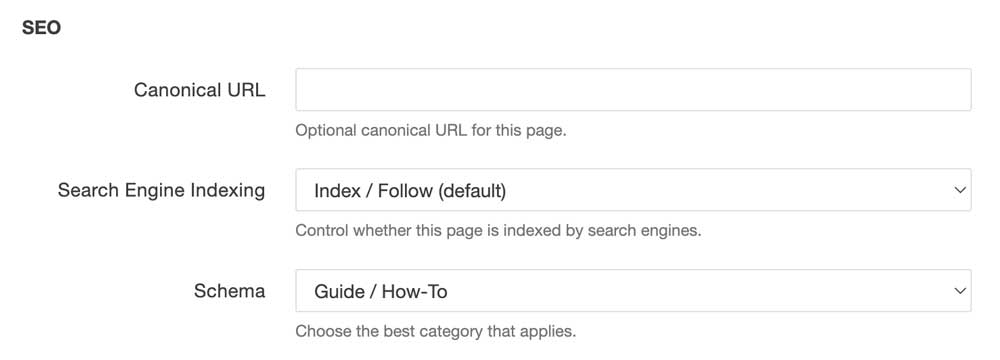
The Schema field in Page Properties allows you to provide more specific information about what a page represents.
Choose the option that best describes the primary purpose of the page.
| Schema Type | Use When... | Examples |
|---|---|---|
| General Content Page | The page provides general information and doesn't fit another category. This is the default for most pages. | About pages, research centers, service pages, informational content |
| Landing / Campaign Page | The page is designed around a specific marketing or recruitment goal with a clear call to action. | Admissions campaigns, fundraising pages, event registration landing pages |
| News / Announcement | The page publishes timely institutional news or announcements. | Press releases, awards, leadership announcements, campus news |
| Blog / Story | The page tells a story or publishes editorial content that is more evergreen or narrative. | Student stories, alumni features, faculty interviews, research stories |
| Event Page | The page promotes a specific event with a date, time, and location. | Conferences, lectures, workshops, performances, open houses |
| Course Page | The page describes an individual course. | BIO 201, MAT 125, HIS 101 |
| Academic Program | The page describes a degree, certificate, or academic program. | BS in Biology, MBA, MS in Computer Science, Graduate Certificate |
| Faculty or Staff Profile | The page primarily represents a single person. | Faculty biographies, staff profiles, leadership pages |
| Department or Unit Homepage | The page is the main homepage for a department, office, center, or administrative unit. | Department of History, Financial Aid, Career Center, University Libraries |
| FAQ Page | The page primarily consists of questions and answers. | Admissions FAQs, Financial Aid FAQs, CMS Support FAQs |
| Guide / How-To | The page provides step-by-step instructions for completing a task. | CMS tutorials, application instructions, password reset guides |
| Policy / Official Document | The page publishes official university policies, procedures, regulations, or governance documents. | University policies, procedures, official guidelines, governance documents |
For example, a Web Support article explaining how to add an image should use Guide / How-To, while an academic department's main page should use Department or Unit Homepage.
Older pages
No action is required for pages created before the Schema field was introduced. When a page does not have a schema selection stored in Modern Campus, the system safely treats it as a general WebPage.
You can select a more specific schema type the next time you edit the page.
Using FAQ schema with accordions
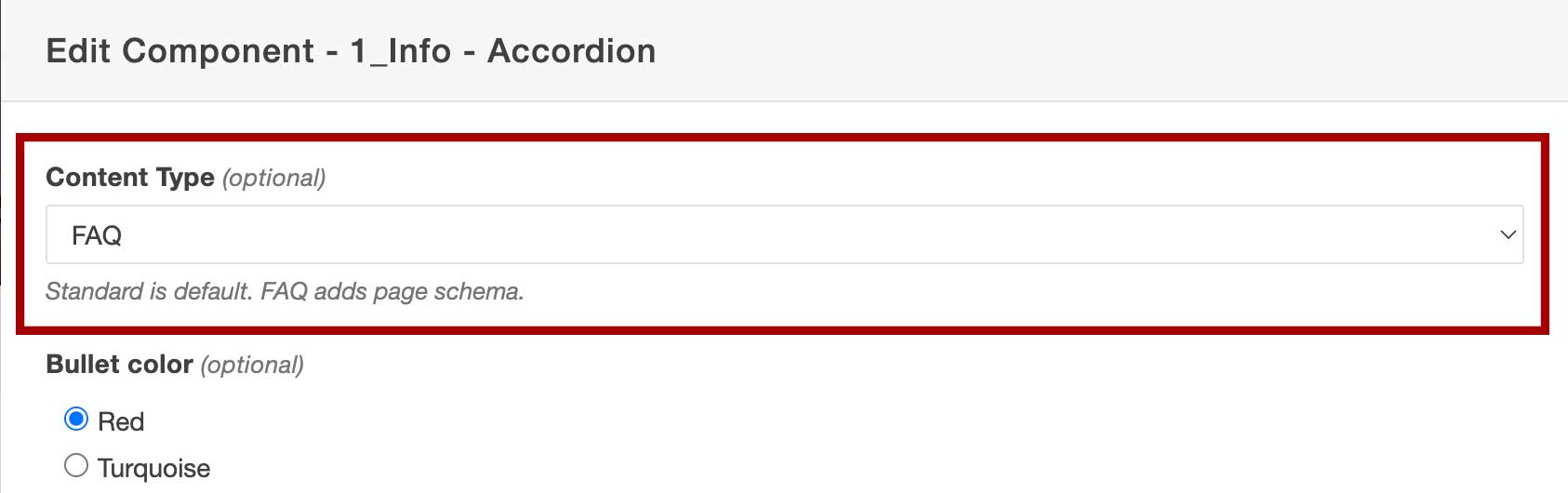
FAQ structured data can also be generated from accordion content. FAQ schema should only be used when an accordion contains actual questions followed by their answers. Do not select FAQ simply because an accordion is being used to organize information.
FAQ support is available in:
- Component: 1_Info - Accordion
- Snippet: R25 - Accordion
When editing either accordion, set Content Type to FAQ. For ordinary accordion content that is not composed of frequently asked questions, leave Content Type set to Standard.
Standard is the default, so existing accordions will continue working without any changes. If a page contains multiple accordions designated as FAQs, Modern Campus automatically combines their questions and answers into a single FAQPage structured-data object.
Older R25 Accordion snippets
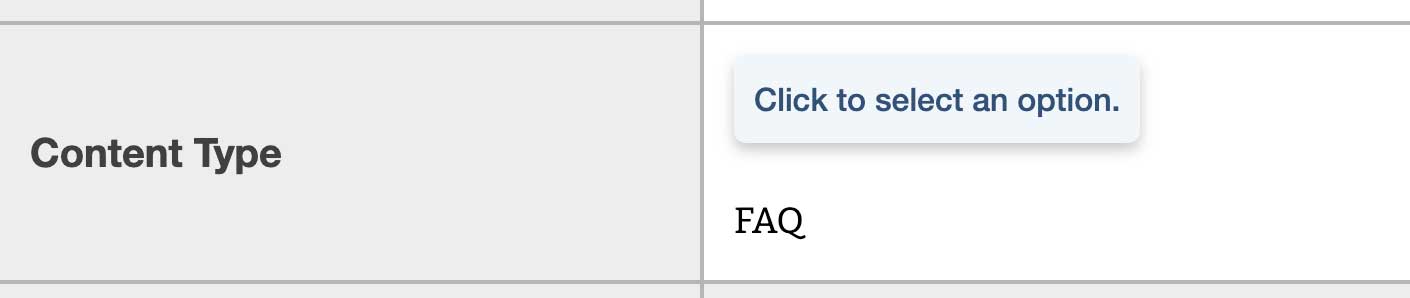
Older instances of the R25 - Accordion snippet may not display the Content Type option. If FAQ schema is needed on one of these accordions, add (or ask the web services team to add) the following row to the table head, then publish the page.
<tr>
  <th class="mceNonEditable">
    Content Type
  </th>
  <td data-name="content-type" data-select-list="Standard,FAQ">FAQ</td>
</tr>
Optional department information
Departments can provide optional, additional structured data describing their own organization by using department folder directory variables. This is not required. Pages already receive Stony Brook University, website and webpage schema automatically.
Departments that want to provide additional organizational information can configure directory variables on their department folder. The information then inherits to pages beneath that folder.
Available variables include dept-name, dept-url, dept-logo, dept-logo-width, dept-logo-height, dept-phone, dept-email, address fields and dept-sameas.
Using both department name and department URL is preferred. The department URL becomes the department entity's identifier, and the department is connected to Stony Brook University as its parent organization.
Because this is an advanced, folder-level configuration, editors who want department schema added may want to submit a Web Support request rather than modifying these variables themselves.
Examples of Department Information
Departments can use directory variables to give search engines and other systems more specific information about their unit. For example, a department might configure:
- dept-name: The department's official name, such as Department of Chemistry.
- dept-url: The department's homepage URL, such as https://www.stonybrook.edu/chemistry/. This also serves as the unique identifier for the department in the structured data.
- dept-logo: The URL of an approved logo or identifying graphic for the department, such as https://www.stonybrook.edu/chemistry/images/chemistry-logo.svg.
- dept-logo-width and dept-logo-height: The width and height of the logo image, in pixels, such as 300 and 100.
- dept-phone: The department's main public phone number, such as 631-632-7880.
- dept-email: A general department email address, such as chemistry@stonybrook.edu.
- Address variables: The department's physical or mailing address. For example, dept-address-line1 could be 100 Nicolls Road, dept-address-city could be Stony Brook, dept-address-region could be NY, dept-address-postal could be 11794, and dept-address-country could be US.
- dept-sameas — URLs for authoritative profiles or accounts representing the department, such as its official LinkedIn, Facebook, Instagram or YouTube presence.
For example, configuring Department of Chemistry with its name, URL, contact information and official social profiles allows the structured data to describe Chemistry as its own Organization while still identifying Stony Brook University as its parent organization.
Departments do not need to complete every field. At minimum, dept-name and dept-url are recommended if department-level schema is being configured.
Publishing and schema updates
Schema is generated when a page is published. Therefore, a page must be republished before new schema functionality or changes to its schema settings appear on the public website.
There is no need to republish an entire website solely to receive the schema updates. Pages can be updated naturally as editors make changes and republish them.
Checking your schema
You can check the structured data generated for any published page using the Schema.org Validator.
Enter the public URL of the published page, not its Modern Campus preview URL.
On a standard Stony Brook page, you should generally see:
CollegeOrUniversity → WebSite → WebPage
Additional schema may appear depending on the page's settings and content. For example, FAQPage will appear when an accordion has explicitly been designated as FAQ.
The validator is also useful after changing a page's schema type or enabling FAQ schema
to confirm that the structured data appears after publishing.
Important Note
If you see the validator return an error related to “@type: WebPage WebPage WebPage (The type WebPage WebPage WebPage is not a type defined by the recognized schema (e.g. schema.org).)” , republish your page and validate again.
Most schema work happens automatically. For everyday editing, web editors primarily need to do two things: choose the Page Properties schema type that most accurately describes the page, and mark an accordion as FAQ only when it contains genuine question-and-answer content. For more on optimizing your content, please see our SEO/GEO guide.