


SEO Page Properties
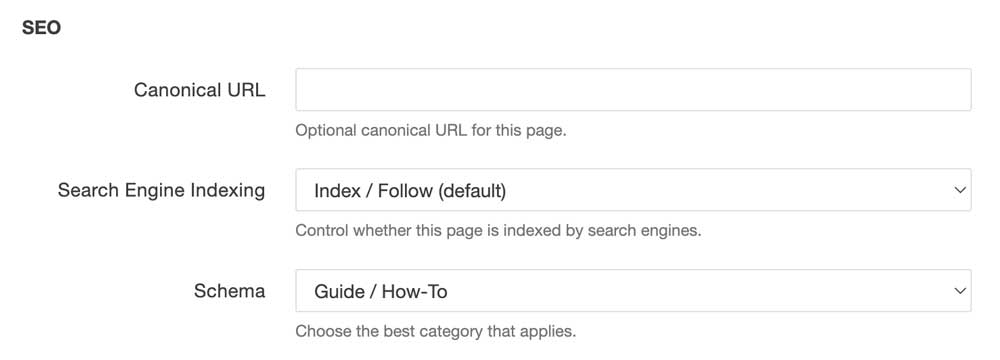
The SEO section of your page properties helps search engines understand your content and determine how it should appear in search results and AI-powered search experiences. While most pages can be left with the default settings, understanding these options will help you make better decisions when creating specialized content.
Accessing Page Properties
Before you can edit all of a page's settings, including its SEO options, you must first check out the page.
- In the Pages view, locate the page you want to edit.
- Click the lightbulb icon next to the page to check it out. The icon will indicate that the page is now checked out to you.
- Click the page name to open it in the editor.
- Select the Page Properties tab.
Important: If a page is not checked out, the Page Properties tab displays only a limited set of options. The SEO section, along with other editable properties, will not be available until the page has been checked out.
Canonical URL
The Canonical URL tells search engines which version of a page should be treated as the "official" version when similar or duplicate content exists.
For most pages, leave this field blank. The CMS automatically treats the current page URL as the canonical version.
Use a canonical URL only when:
-
The same content is intentionally available at multiple URLs.
-
A campaign or landing page duplicates content that exists elsewhere.
-
Multiple pages contain substantially the same information and you want search engines to consolidate ranking signals.
Example
Suppose these two pages contain nearly identical content:
https://www.stonybrook.edu/admissions/graduate/
https://www.stonybrook.edu/future-students/graduate/
On the duplicate page, you would set the canonical URL to:
https://www.stonybrook.edu/admissions/graduate/
This tells search engines to index and rank the primary page rather than treating the pages as competing duplicates.
Search Engine Indexing
This setting controls whether search engines should include your page in their search results and whether they should follow the links on the page.
Index / Follow (Default)
Index / Follow is the recommended setting for almost every public webpage on stonybrook.edu. It allows search engines to include the page in search results, follow links to other pages on your site, and pass ranking signals through those links. Leave this option selected for department homepages, academic programs, news articles, events, faculty and staff profiles, landing pages, support documentation, and nearly all other public-facing content.
No Index / No Follow
No Index / No Follow instructs search engines not to include the page in search results and not to follow any links on the page. This setting should be used sparingly, as it prevents the page from contributing to your site's visibility in search engines. It is generally appropriate only for private staging content or pages that should remain completely hidden from search engines.
Schema
Schema (also called structured data) is machine-readable information that helps search engines and AI systems understand what a page is about.
Instead of simply seeing a webpage full of text, schema tells search engines, "this is an event," "this is a faculty profile," "this is a course," etc.
Providing the correct schema helps search engines accurately interpret your content and may make the page eligible for enhanced search features such as rich results, event listings, knowledge panels, and AI-generated summaries.
For more information on how to use page schema, please see our expanded guide here.