Mobility and Parking Services is thrilled to introduce FASTER, the university’s brand-new fleet management system! Designed to streamline how we track and maintain our campus vehicles, FASTER gives your department a clear, centralized view of your assets.
With this new platform, you will have instant, real-time access to your invoices and repair statuses—meaning no more waiting around for updates. The system also features handy automated alerts for preventative maintenance (like oil changes and state inspections) to take the guesswork out of scheduling and keep your fleet running smoothly and safely.
Getting started:
- Access the system here.
- Enter your Stony Brook email and you will be directed to SSO (single sign on).
- If you cannot access the system, please contact us at sbu_fleet@ stonybrook.edu.
Attention:
Because department contacts now have 24/7 access to view billing information directly
within FASTER, SBU Fleet will no longer email invoices.
Final billing statements for the prior month are available on the 15th of each month.
Running the W502 Billing By Department Report
Directions:
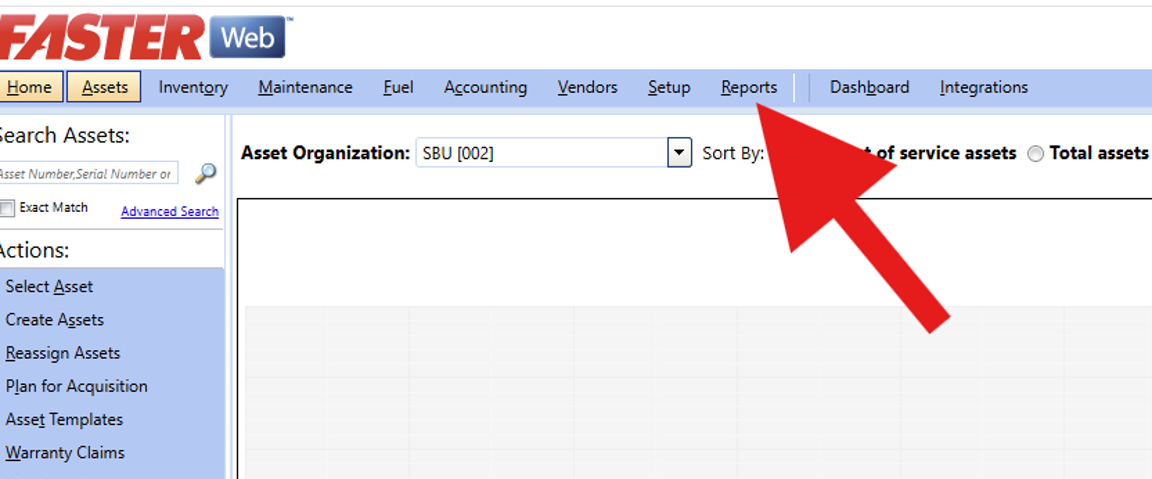
1. Go to the “Reports” tab on the menu bar:
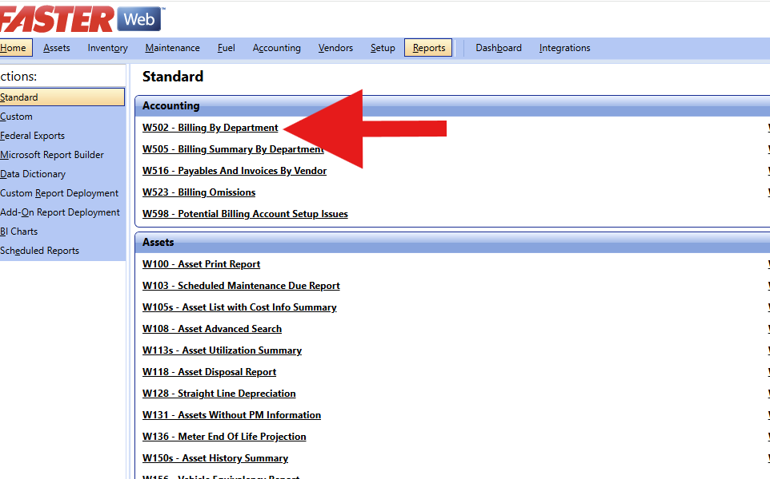
2. Select the W502 report under the Accounting heading
3. Select from the drop down menus
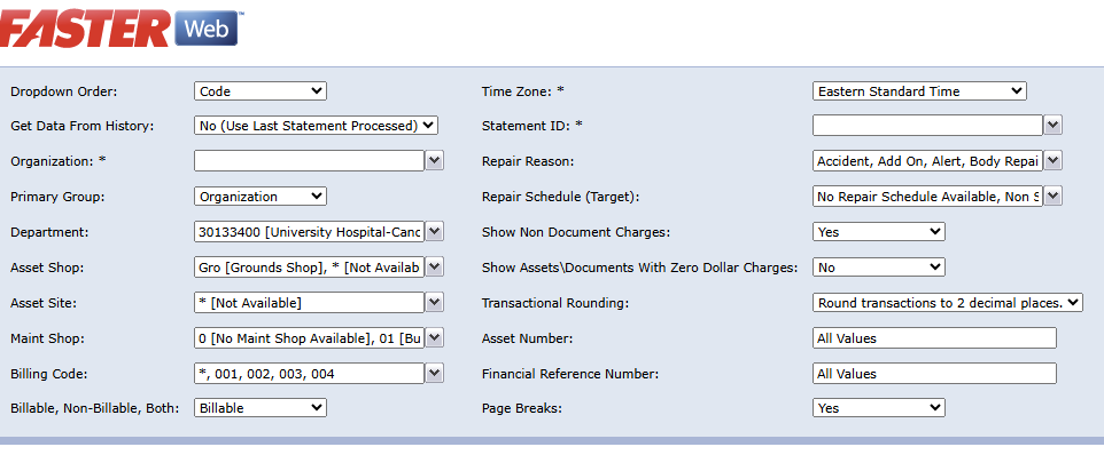
4. Drop Down - Left Side
- Note, all fields marked with an asterisk must have a selection
- Get Data From History = Yes
- Organization = 002 [SBU]
- Department = Can select one of more
- All other fields can remain as the default values
![A partial screenshot of the report parameters form in FASTER Web, showing specific selections like "Yes (Select Statements)" for the Get Data From History field and "002 [SBU]" for Organization.](/mobility-and-parking/_images/fleet-management-system/Faster_Reports4.png)
5. Drop Down-Right Side
- Time Zone = Eastern
- Statement ID = Select the billing period you would like to see
- Page Breaks = No, This will help when downloading the report
![A screenshot showing a red arrow pointing to the option "14 [05/01/2026 TO 05/31/2026]" in the Statement ID dropdown menu.](/mobility-and-parking/_images/fleet-management-system/Faster_Reports5.png)
6. Now press “View Report”
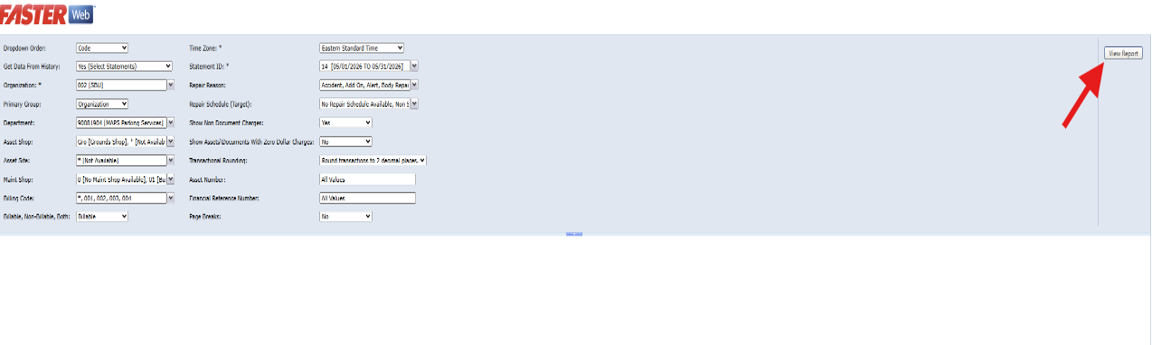
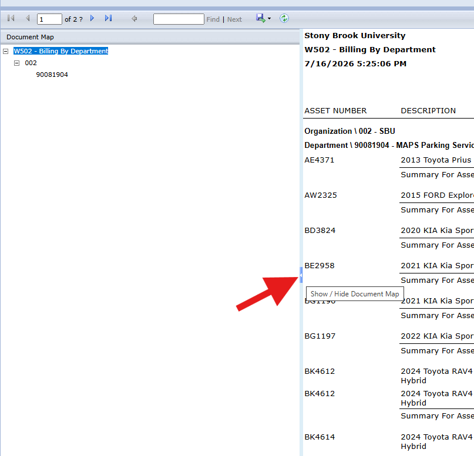
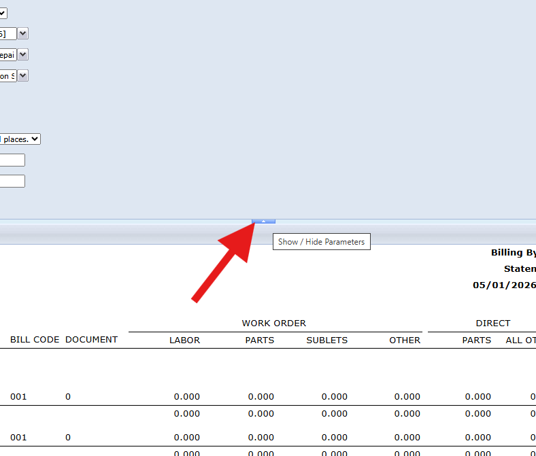
7. Hide the Document Map and Parameters for better viewing
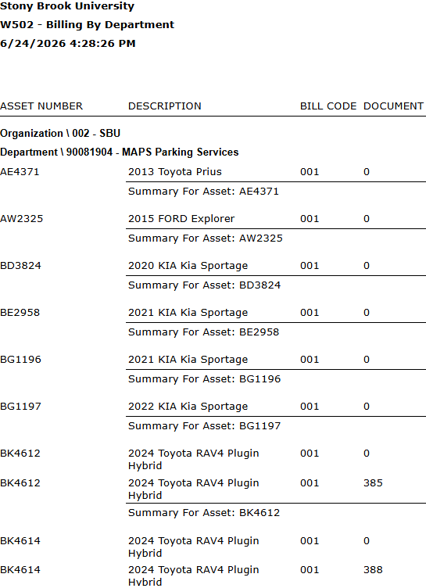
8. Asset Information
- The first section on the left breaks down the assets assigned to each department
- The License plate is the asset number in Faster
- The number in the “Document” column is a work order number.
- Most searches in Faster will use either the Asset number or the Document number
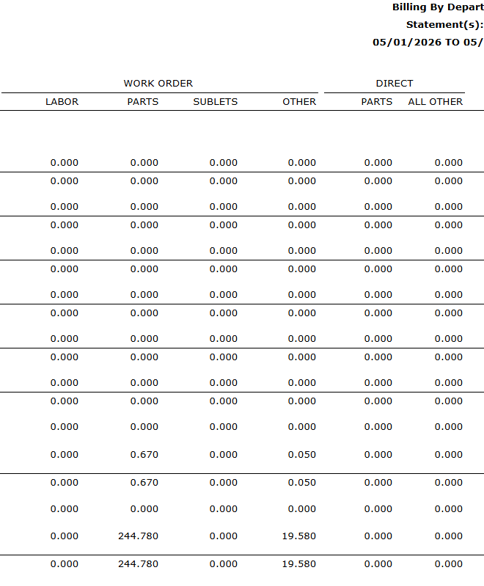
9. Work Order Information
- The work order is broken down by Labor, Parts and Sublet.
- A “Sublet” is when we send the asset to a vendor for repair
- “Other” is where you will see the markup for the work order.
- Direct / Parts is where you will see your car wash charges.
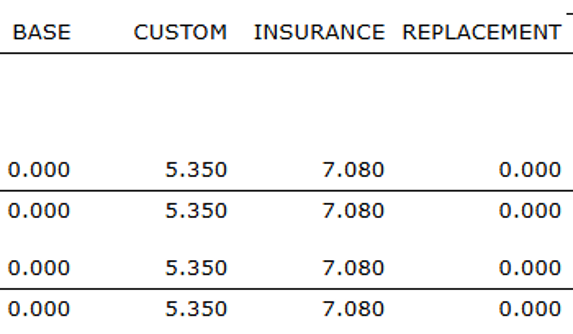
10. Fees
- This section lists the various fees
- Base fee is not in use at this time
- Custom is the fee to register the asset with ARI/Holman. This is a monthly per vehicle fee that allows us to send assets to vendors for repair
- Insurance is the combined monthly fee for our state insurance program (SRAP) plus the OGS fleet management system fee.
- Replacement fee is not used at this time
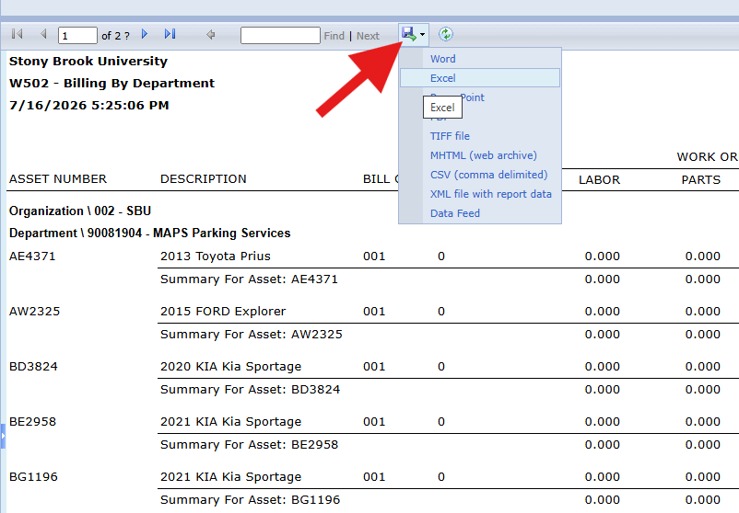
11. Exporting the report
Investigating Work Order Details
1. Finding your Asset and Document number
-
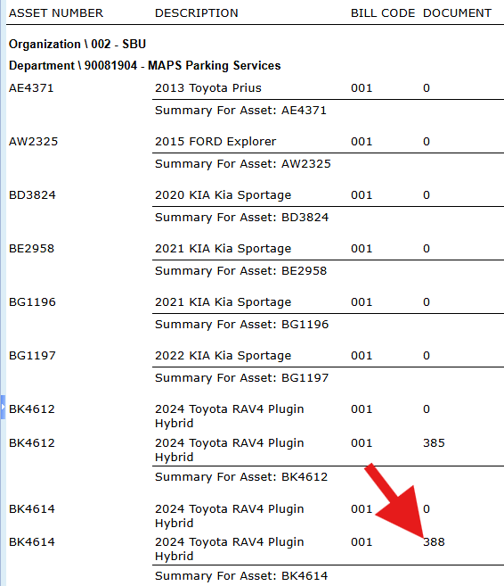
Run your W502 Report to find the “Document” number you want to investigate. Faster uses Document number in place of Work Order number. In this instance we will investigate Document number 388 for repairs to Asset BK4614
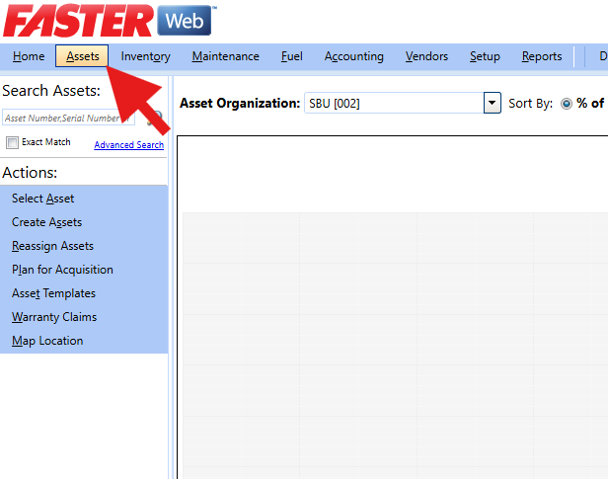
2. Go to the Assets tab in Faster
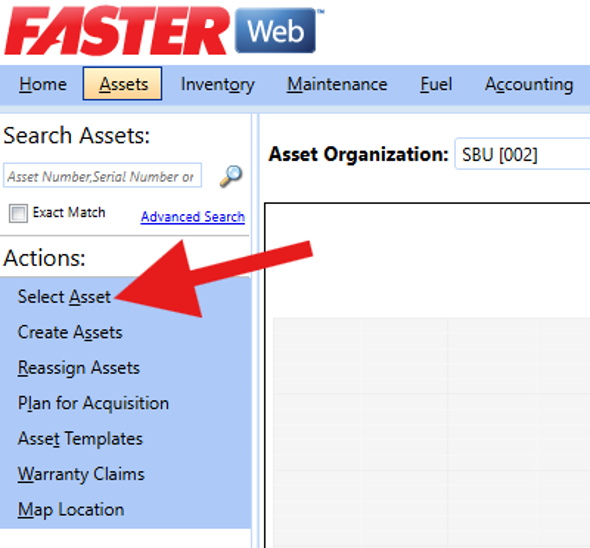
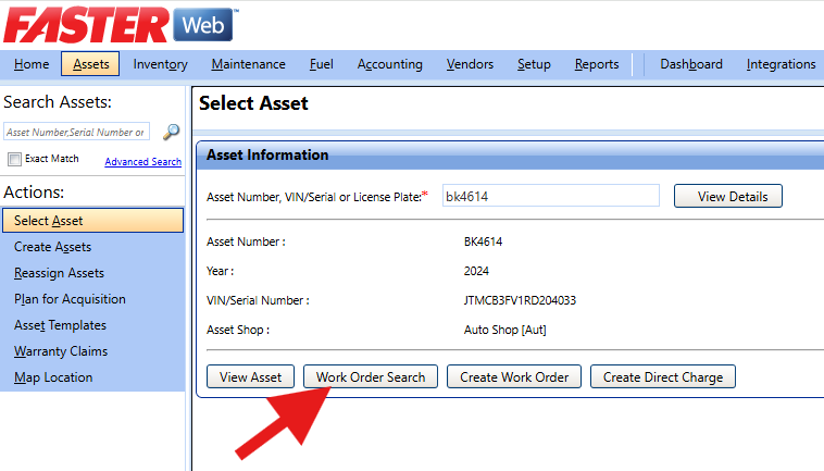
3. Choose “Select Asset” under Actions:
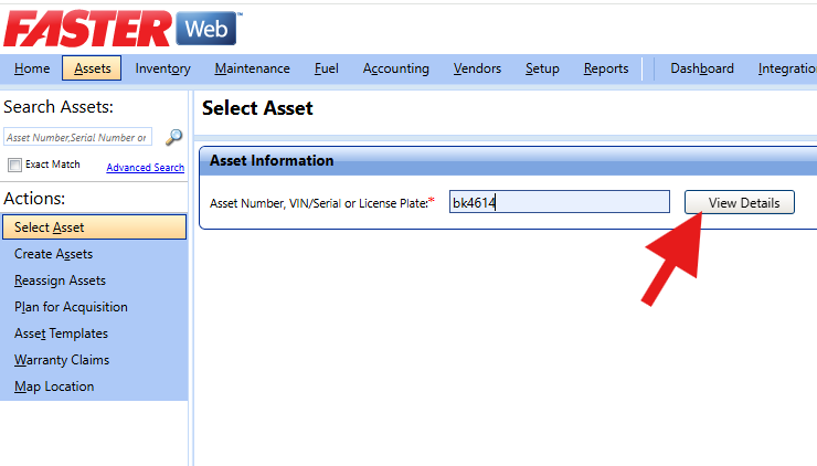
4: Enter License Plate then View Details
5. Click on “Work Order Search”
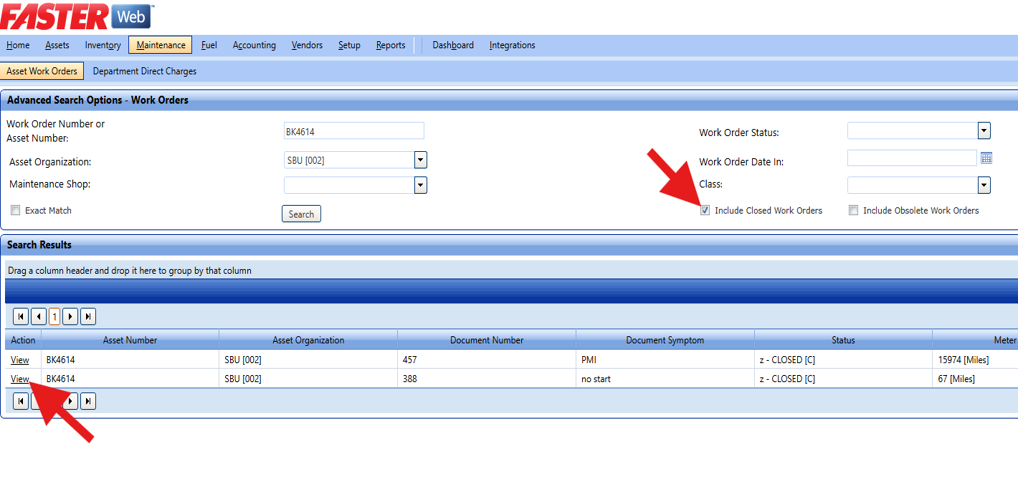
6. Click “View” for the Document Number you want to research
(If you can’t find your Document number, make sure the search included “Closed” work
orders. If it does not, check the box and hit “Search”)
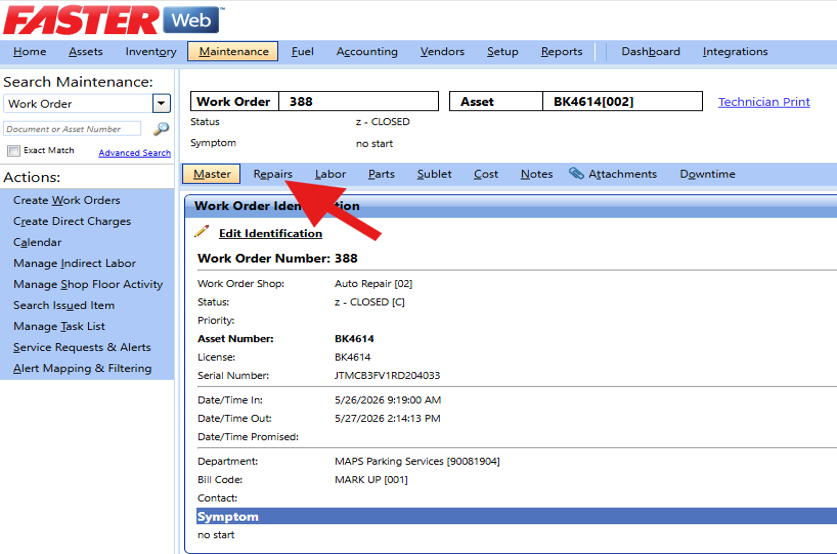
7. There are multiple tabs to gather information. Let’s look at “Repairs”.
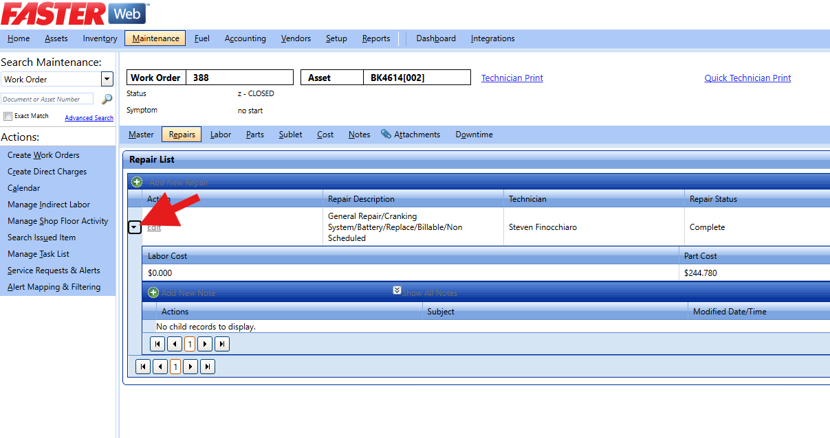
8.“Repairs” will give you general information for each repair.
(Note that anytime you see the small triangle, there are additional drop downs with information.)
9. “Parts” will give a breakdown and cost of all parts issued to the repair.
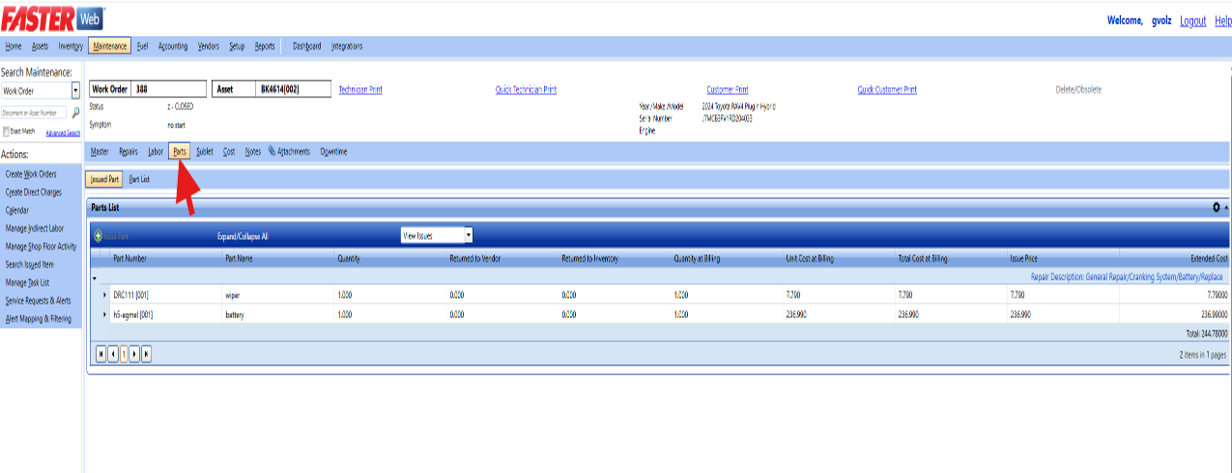
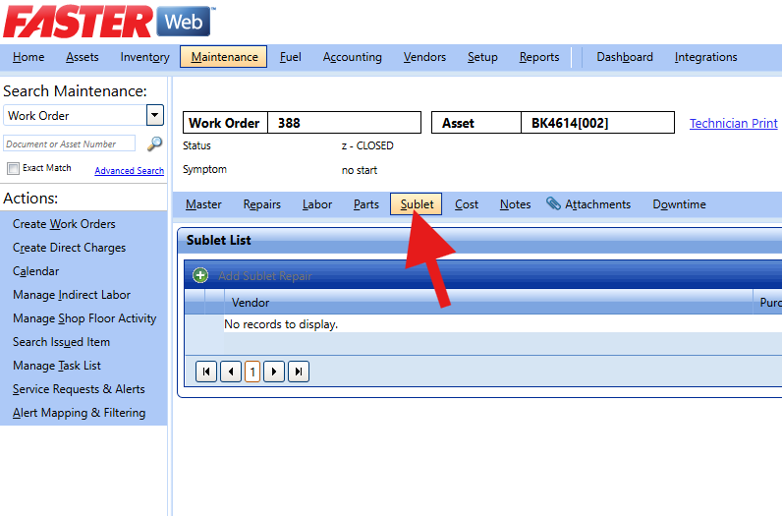
10. If the asset was sent to a vendor for repair, you will find information under “Sublet”.
This repair was completed at Stony Brook.
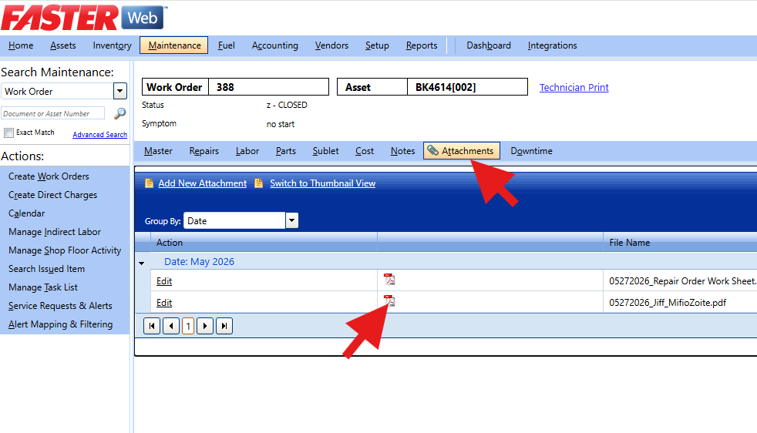
11. Clicking on “Attachments” will show all invoices associated with the repair.
Click on the PDF icon to download the attachment
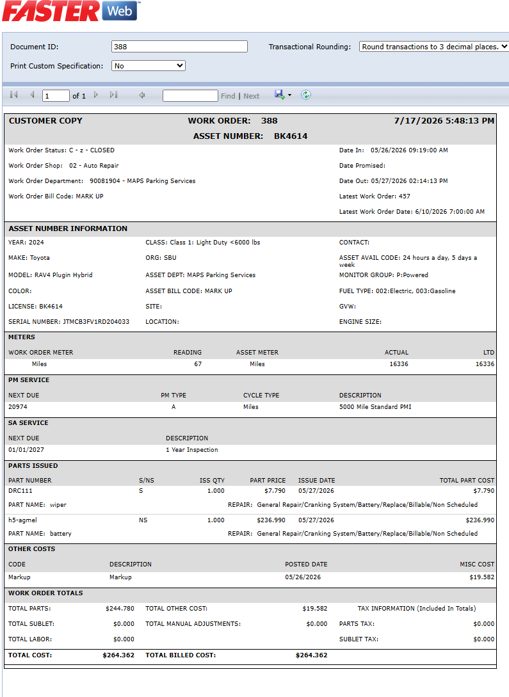
12. For a printout of the repair, you can choose “Customer Print”
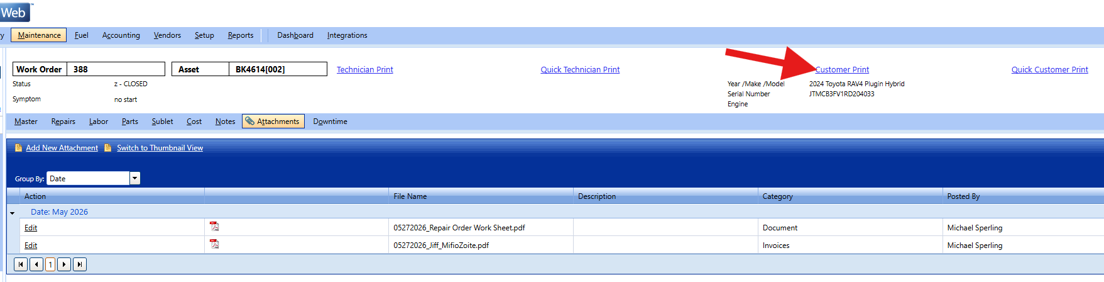
13. Customer "Print" example
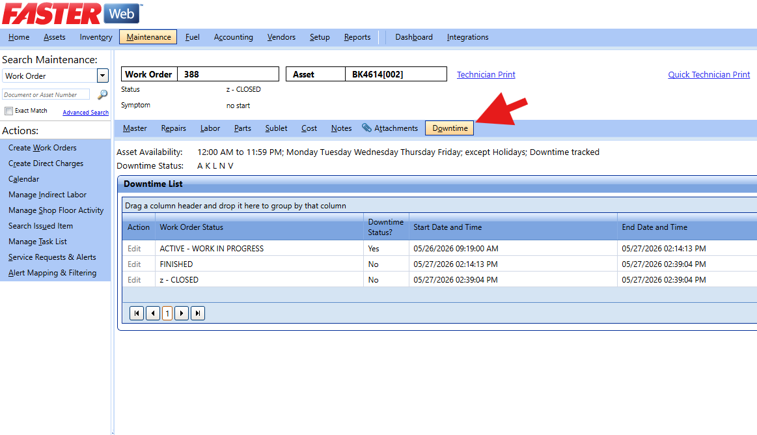
14. "Downtime" will give details when the repair started and finished
Accessing Asset Information
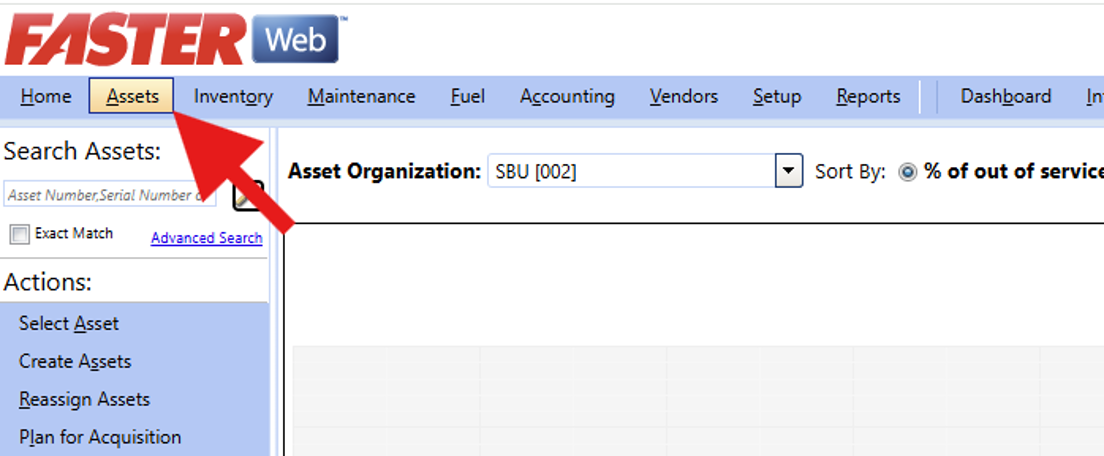
1. Go to the “Assets” tab on the menu bar
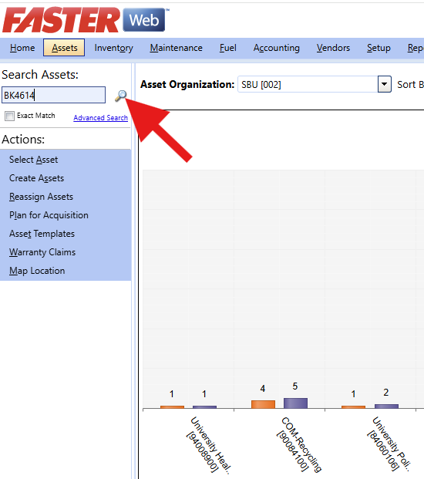
2. Looking for a Specific Asset:
Enter an asset number* then hit “Search” icon
* TIP: Your asset number is listed on the monthly billing statement.
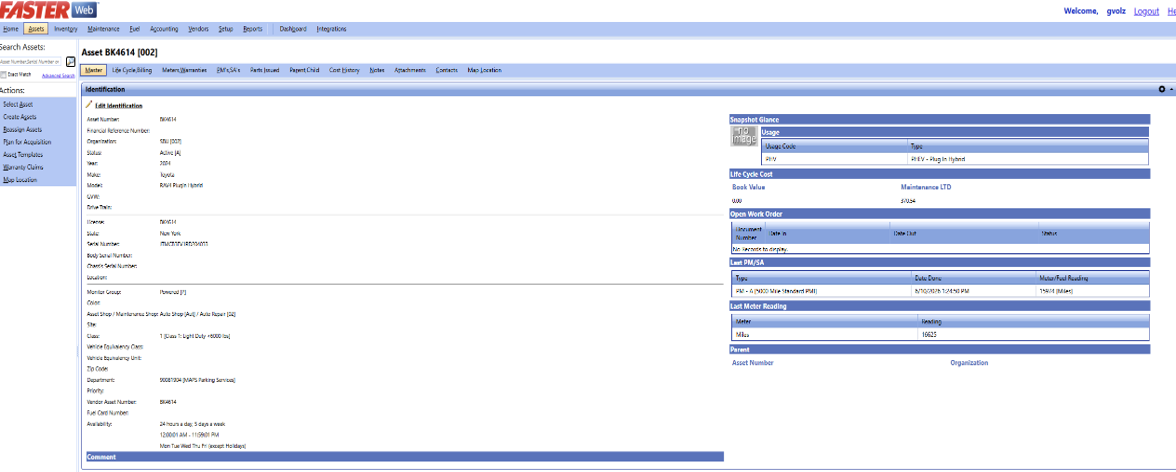
3. You will be brought to the “Master” tab for that asset.
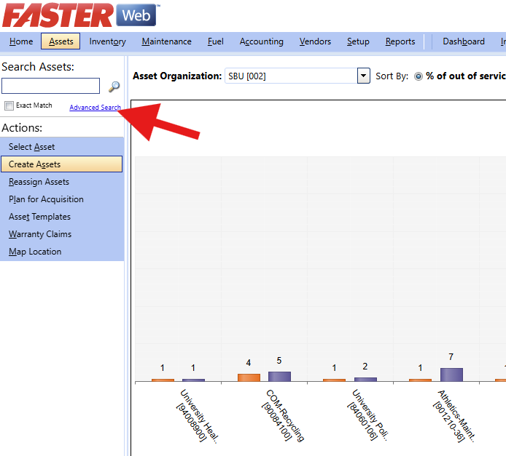
4. View All of Your Assets:
Leave box blank and hit “Advanced Search”
5. You will then be asked to enter search options
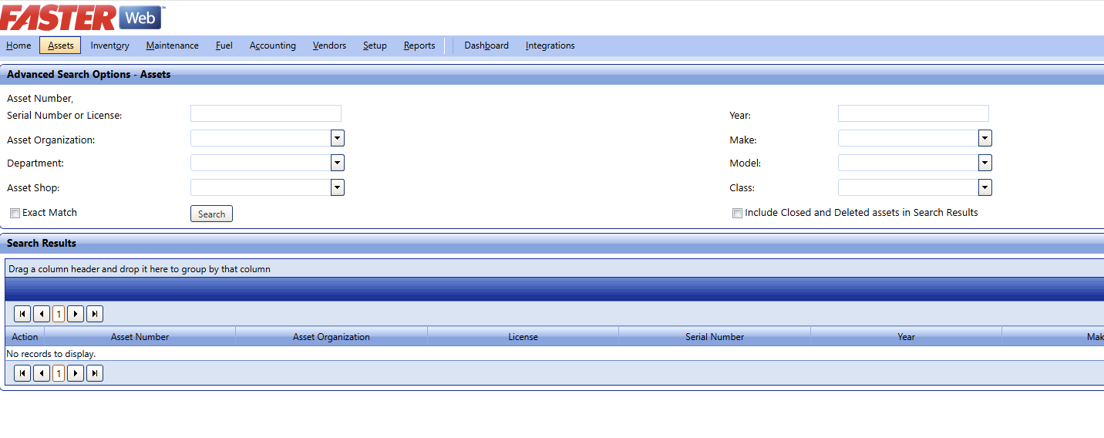
6. Drop Down - Left Side
- Leave asset number blank
- Organization = 002 [SBU]
- Department = Select your department
- Asset Shop = Auto
- Hit “Search” button
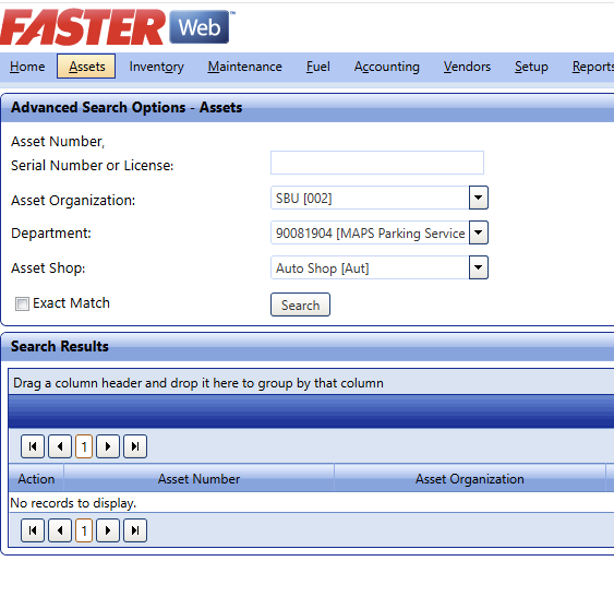
7. All of your department assets will be listed in alphabetical order by asset number
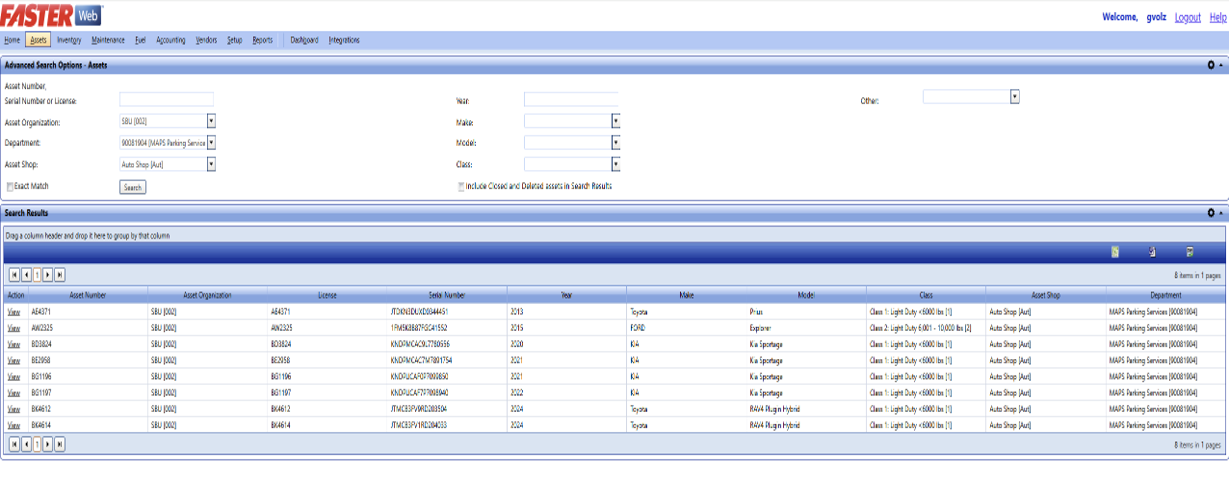
8. View a specific asset by clicking “View” next to the desired asset
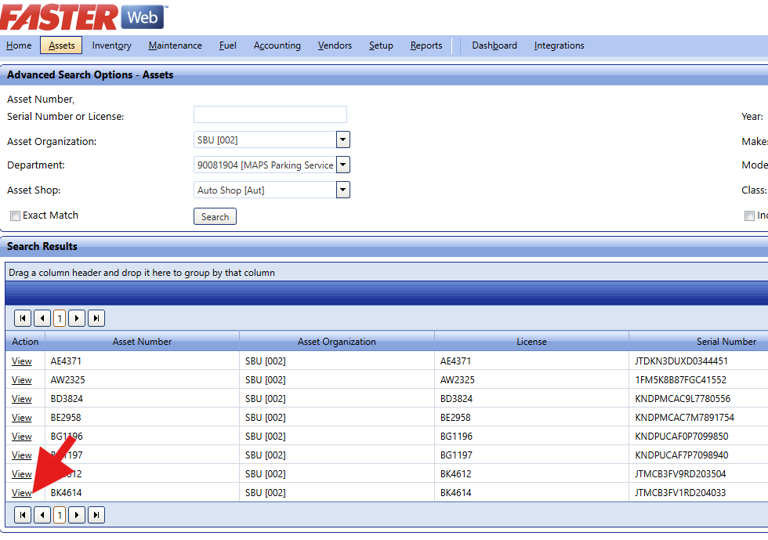
9. You will be brought to the “Master” tab for that asset.
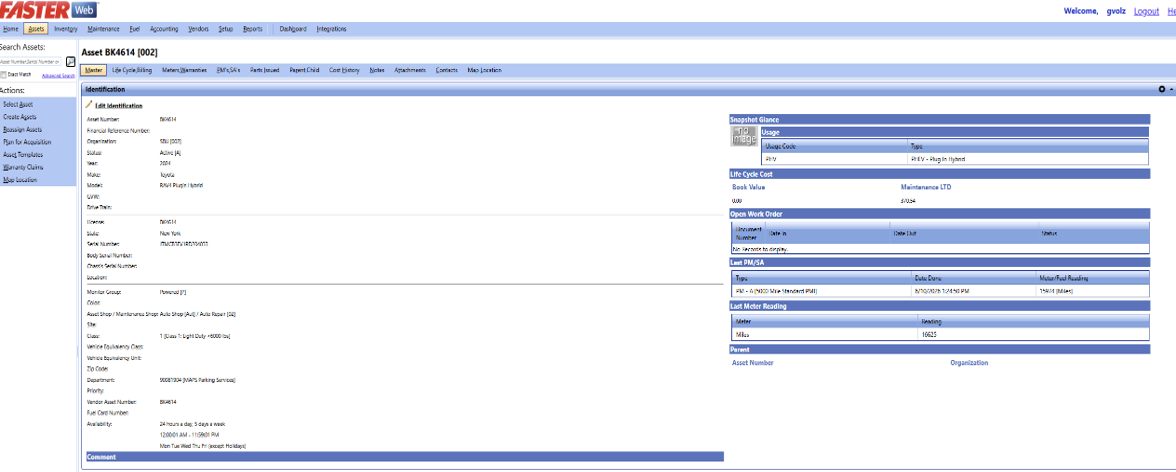
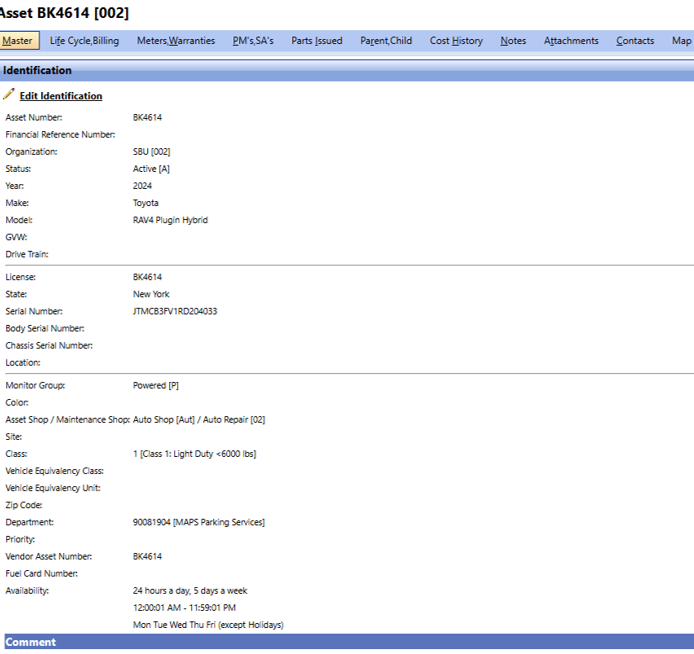
10. Master Tab: Identification
- The section shows basic information about the asset
- Asset number, year, make and model
- “Serial” or VIN number
- Vehicle class
- Department the vehicle is assigned to
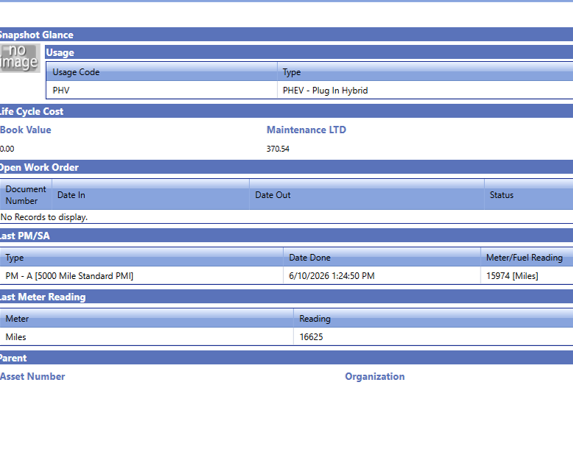
11. Master Tab: Snapshot Glance
- This gives a snapshot of some important information:
- Life Cycle cost and maintenance to date
- Open Work Orders
- Last PM (oil change) date and Meter Reading (mileage).
- Last SA or “Scheduled Action”. We use this for yearly NYS Inspection
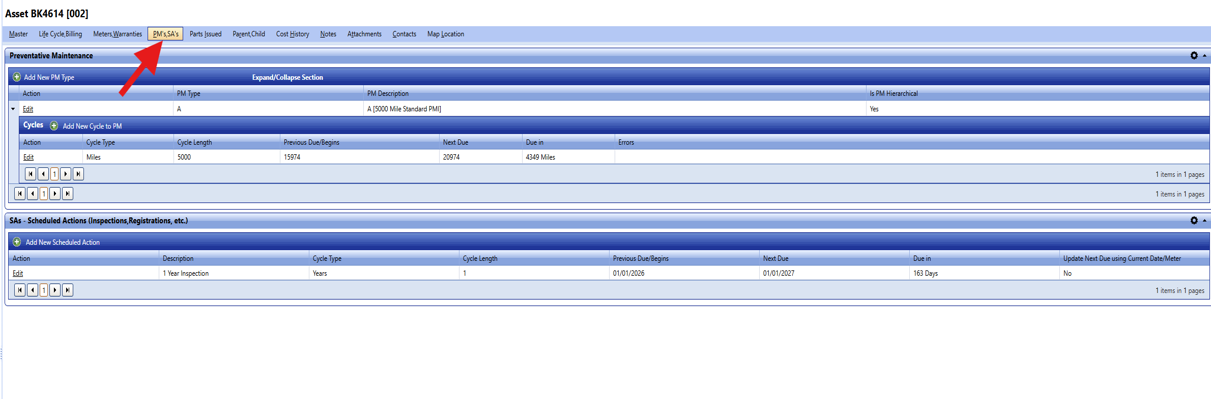
12. “PM’s, SA’s” Tab:
This tab will give detailed information about past oil changes, inspections and due dates.
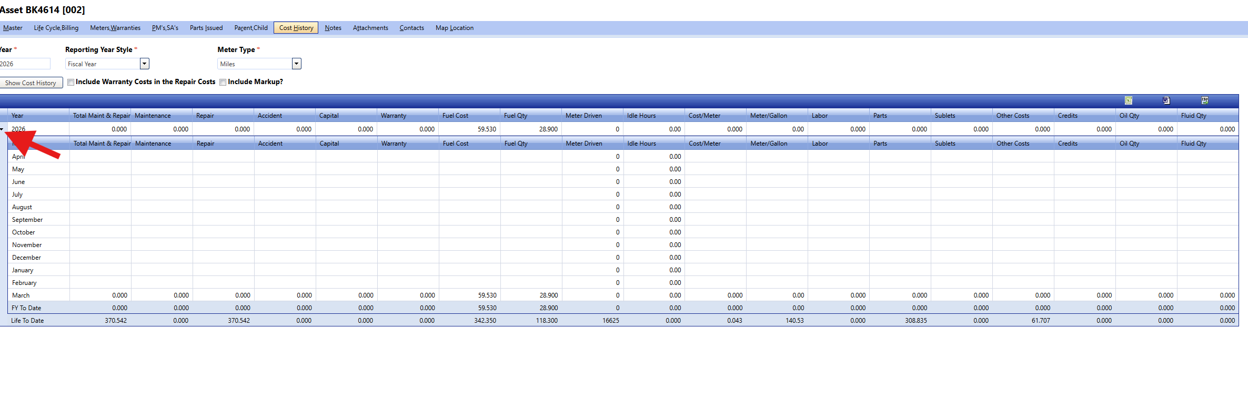
13. “Cost History” Tab:
This tab will show historical costs broken down by category. Using the drop down will show cost for each month.
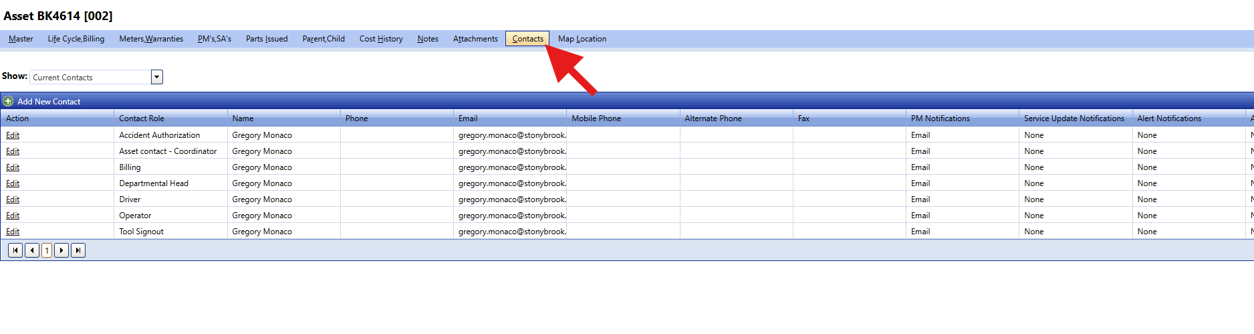
14. “Contacts” Tab:
This tab will show who is listed as the contact for each asset. Contacts can be updated by emailing sbu_fleet@stonybrook.edu.