Submit Your Deposit
When you are ready to start your success story at Stony Brook, you can follow these instructions to pay your deposit in SOLAR. Please select your device type for specific instructions.
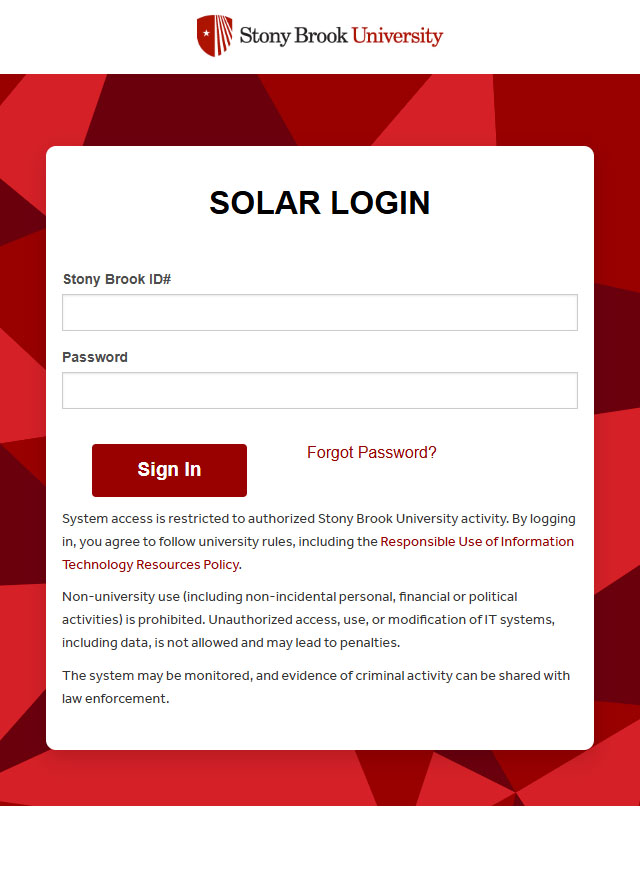
- Navigate to the SOLAR login page using the SOLAR Login button below.
- Login to SOLAR using your Stony Brook ID number and password.
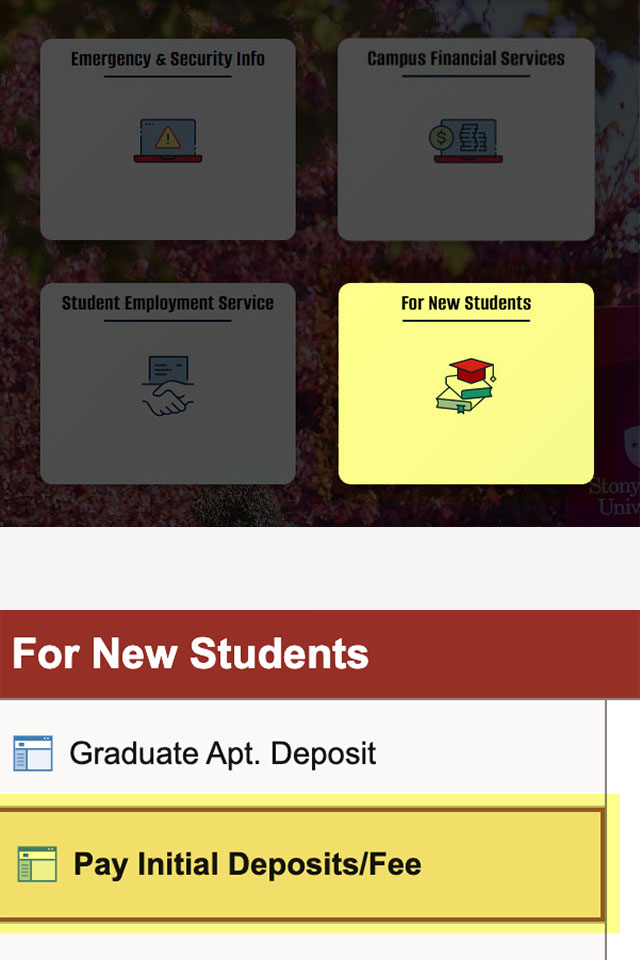
- Select the “For New Students” tile.
- Select “Pay Initial Deposits/Fee” on the left sidebar.
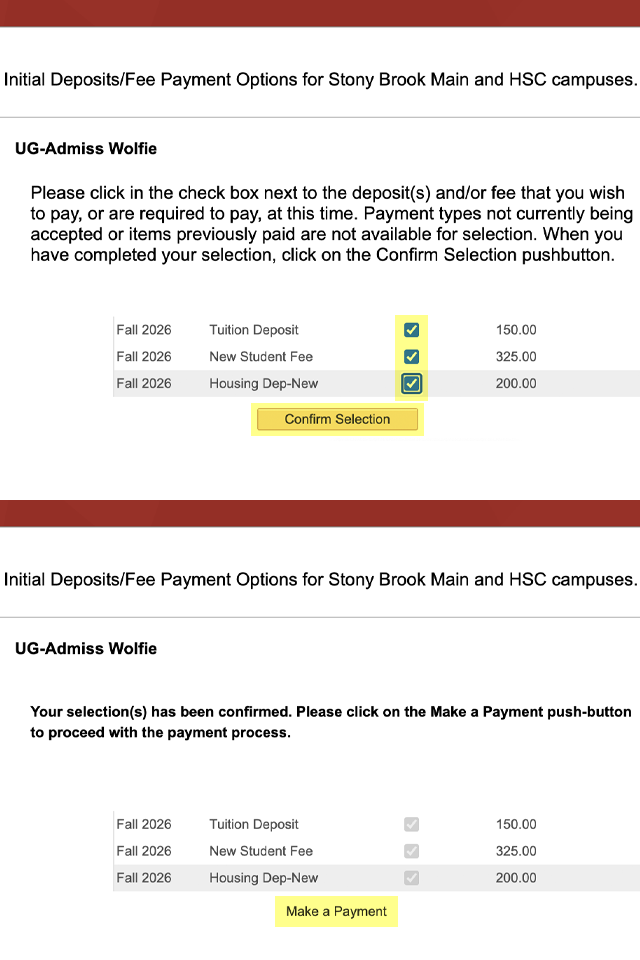
- Check the checkboxes to select the Tuition Deposit and Orientation Fee payments. If you'll be residing on campus, select the Housing Deposit payment as well.
- Select the Confirm Selection button.
- Your screen will update with a message that your selections have been confirmed.
- Select the words “Make a Payment” to proceed with your payment selections.
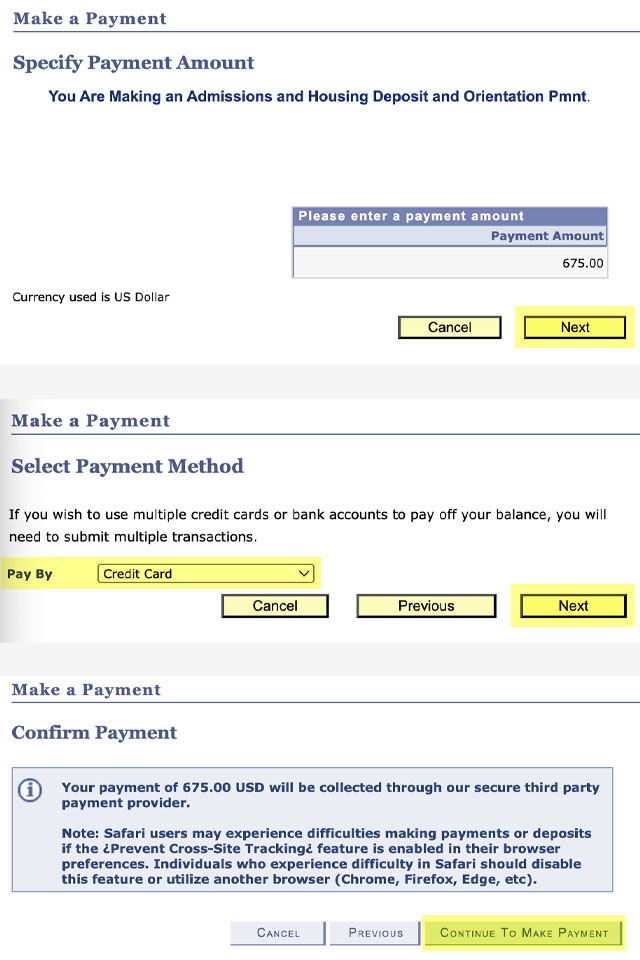
- Select the Next button to confirm the payment amount.
- Select the payment method using the "Pay By" dropdown menu. You can pay Credit Card or Electronic Check.
- Select the Next button to confirm the selected payment method.
- Select "Continue To Make Payment" to confirm your selection.
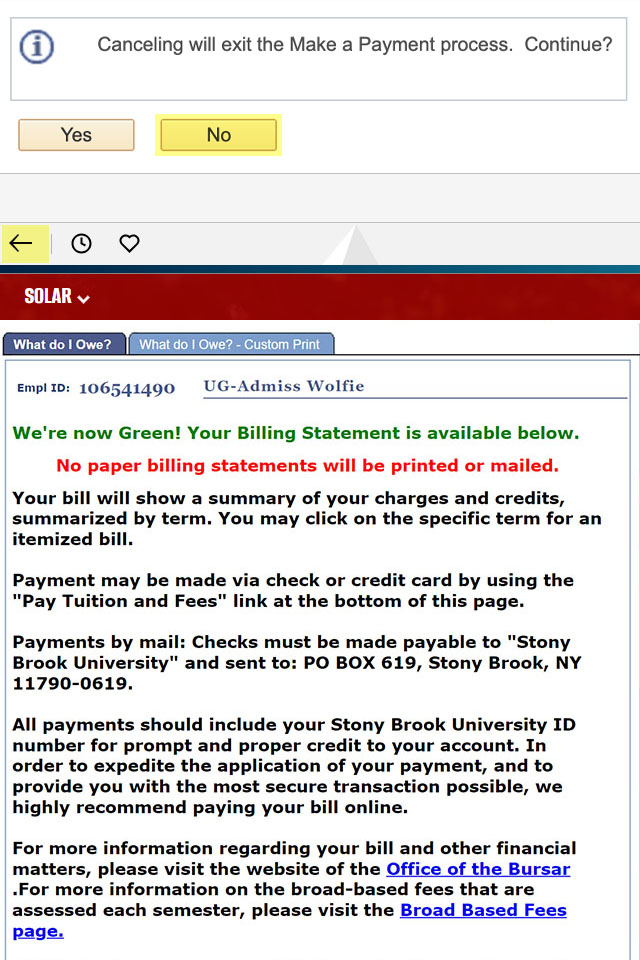
Please note that if you select Cancel during the payment process and are redirected to a page with a warning message shown in the screenshot, you should select “No” to return to the Confirm Payment screen.
If “Yes” is selected, and you wish to continue with payment, do not select Pay Tuition and Fees at the bottom of this page but select the back arrow in the top left corner until you return to the For New Students page to start over.
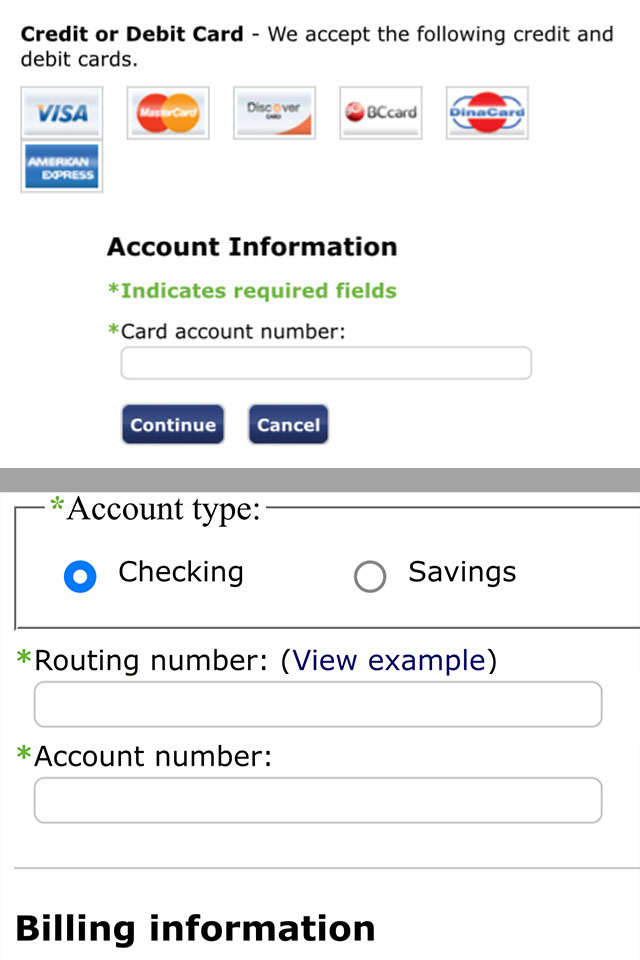
- Enter the payment information for the payment method you selected. The top portion of the screenshot shows the credit card information entry screen. The bottom portion shows the electronic check information entry screen.
- Select continue to confirm the payment information entered and finalize the payment process. Your screen will update with a message that your payment has been confirmed.
- Once you have finalized the payment process you can close your web browser.
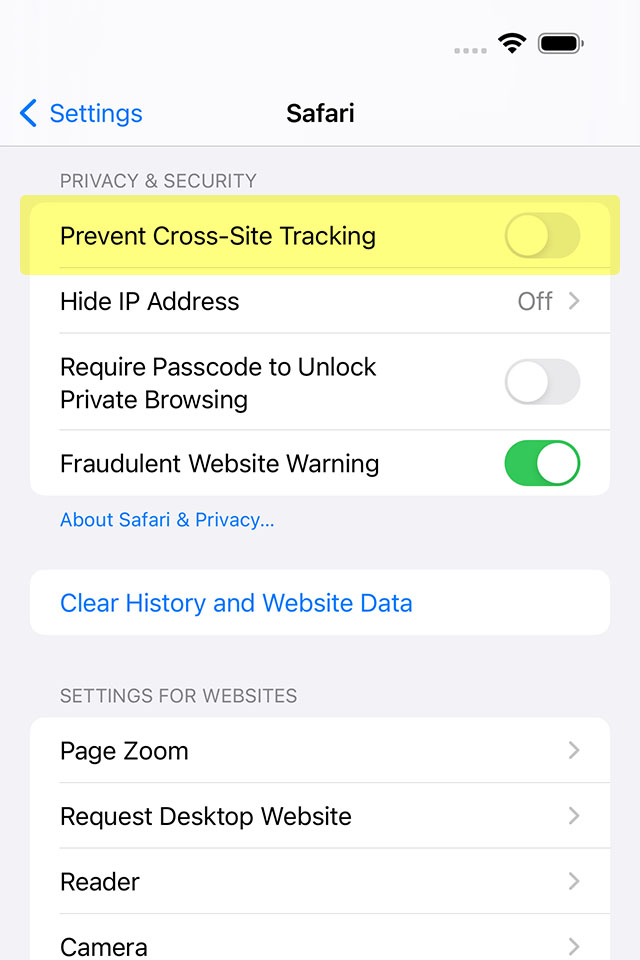
Initial deposits and fee payments are collected through our secure third-party payment provider. Cross-site tracking must be enabled for the payment process but can be disabled again once the process is complete.
To enable cross-site tracking:
- Go to Settings.
- Navigate to the Safari settings page.
- Turn off the "Prevent Cross-Site Tracking" setting.
- Open Safari.
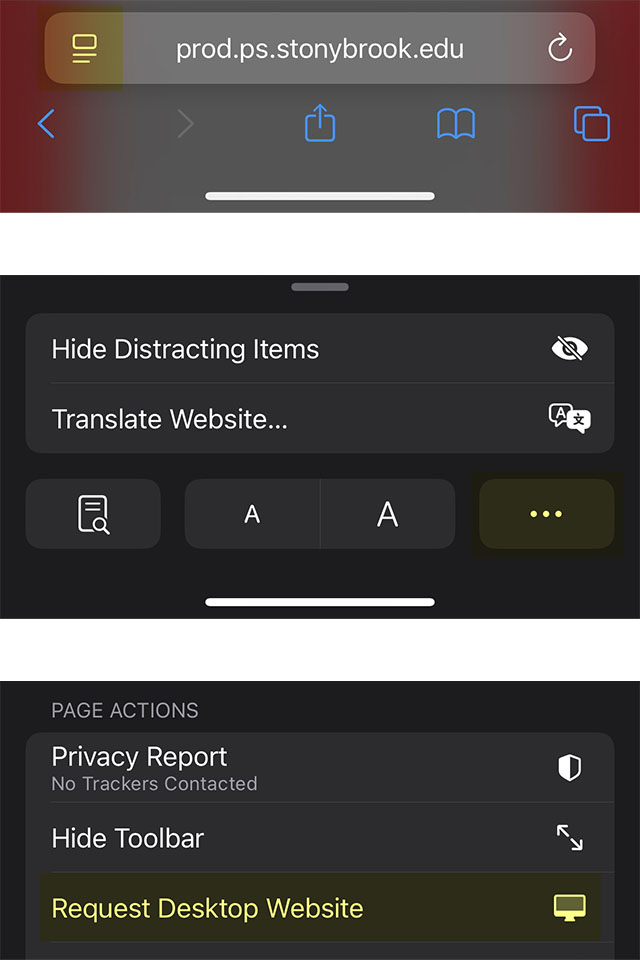
Initial deposits and fee payments can only be made on the SOLAR desktop website.
To access the SOLAR desktop website on your iPhone:
- Navigate to the SOLAR login page using the SOLAR Login button below.
- Tap the page menu button on the left side of the Safari address bar.
- Tap the three-dot button on the right side of the menu to exand the page menu.
- Tap the "Request Desktop Website" item under the "Page Actions" section of the pop-up menu.
- Safari will redirect you to the SOLAR desktop website login page.
Login to SOLAR using your Stony Brook ID number and password.
The Office of Undergraduate Admissions cannot directly assist with technical issues relating to SOLAR. Should you encounter issues logging in, it is recommended to clear your web browser's cache/cookies or to try a different web browser. If technical issues persist, please contact our SOLAR Client Support through our Department of Information Technology (DoIT). You can submit this SOLAR Help Form or call at (631) 632-9800, Monday through Friday during business hours.
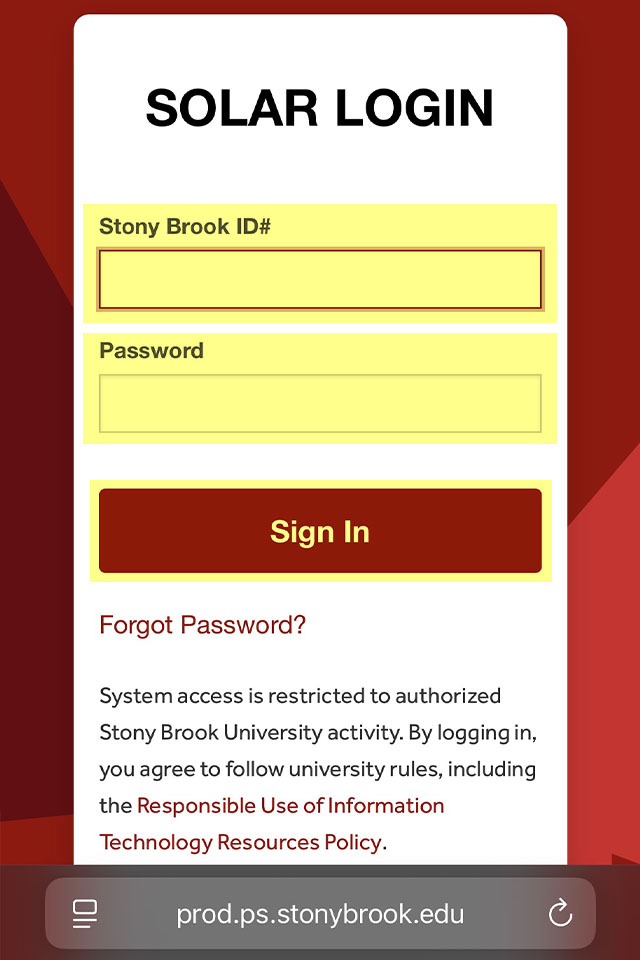
Select the "Pay Initial Deposits/Fee" link located under the "For New Students" tile.
You may need to zoom in to be able to view and tap this link as it can appear small on mobile devices.
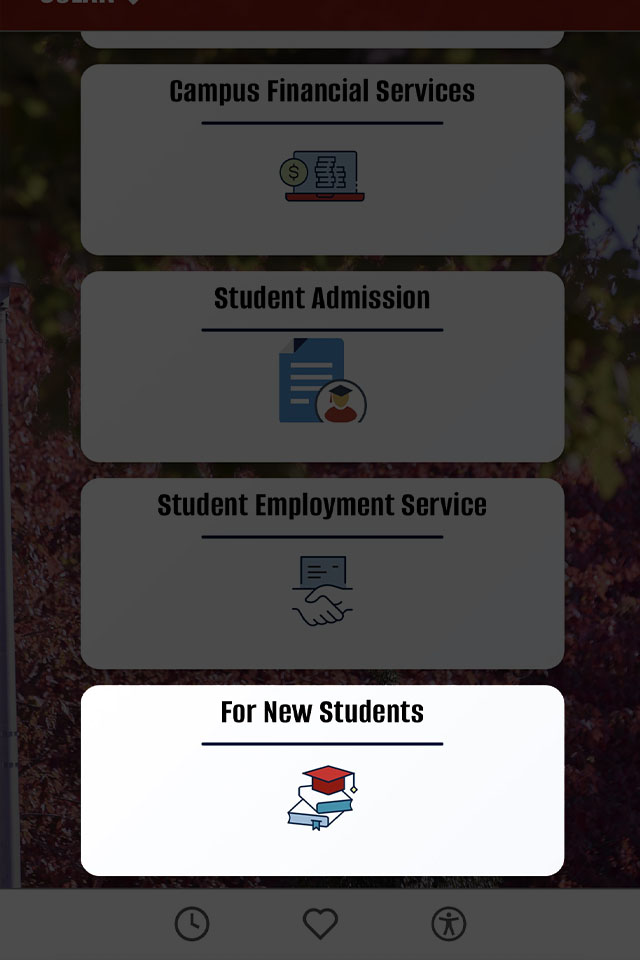
- Check the checkboxes to select the Tuition Deposit and Orientation Fee payments. If you'll be residing on campus, select the Housing Deposit payment as well.
- Select the Confirm Selection button.
- Your screen will update with a message that your selections have been confirmed.
- Select the words “Make a Payment” to proceed with your payment selections.
- Select the Next button to confirm the payment amount.
- Select the payment method using the "Pay By" dropdown menu. You can pay Credit Card or Electronic Check.
- Select the Next button to confirm the selected payment method.
- Select "Continue To Make Payment" to confirm your selection.
Please note that if you select Cancel during the payment process and are redirected to a page with a warning message shown in the screenshot, you should select “No” to return to the Confirm Payment screen.
If “Yes” is selected, and you wish to continue with payment, do not select Pay Tuition and Fees at the bottom of this page but select the back arrow in the top left corner until you return to the For New Students page to start over.
- Enter the payment information for the payment method you selected. The top portion of the screenshot shows the credit card information entry screen. The bottom portion shows the electronic check information entry screen.
- Select continue to confirm the payment information entered and finalize the payment process. Your screen will update with a message that your payment has been confirmed.
- Once you have finalized the payment process you can close Safari.
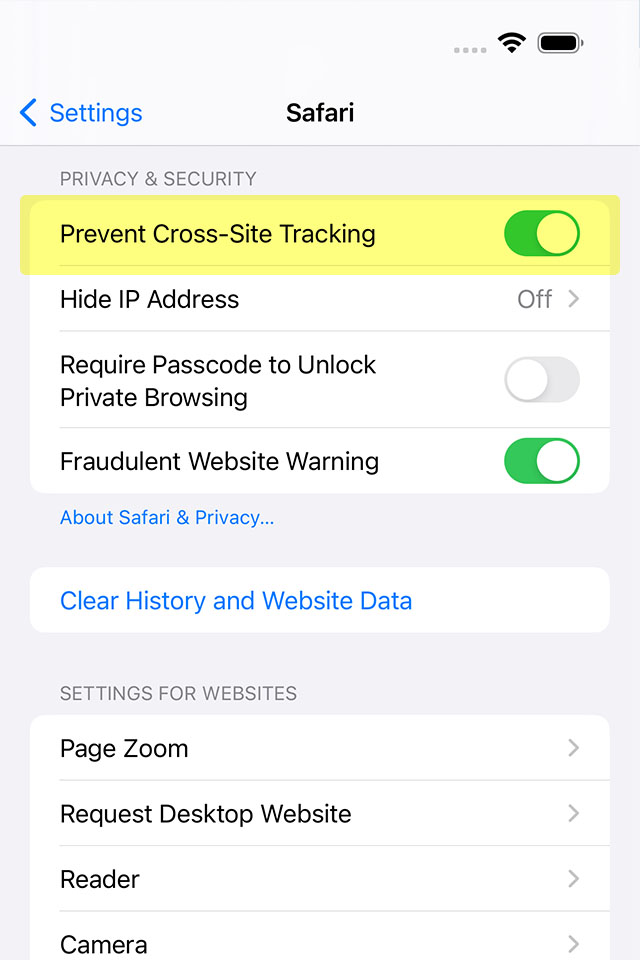
Cross-site tracking can be disabled again once you have completed the payment process.
To disable cross-site tracking again:
- Go to Settings.
- Navigate to the Safari settings page.
- Turn on the "Prevent Cross-Site Tracking" setting.
Initial deposits and fee payments can only be made on the SOLAR desktop website.
To access the SOLAR desktop website on your Android phone:
- Navigate to the SOLAR login page using the SOLAR Login button below.
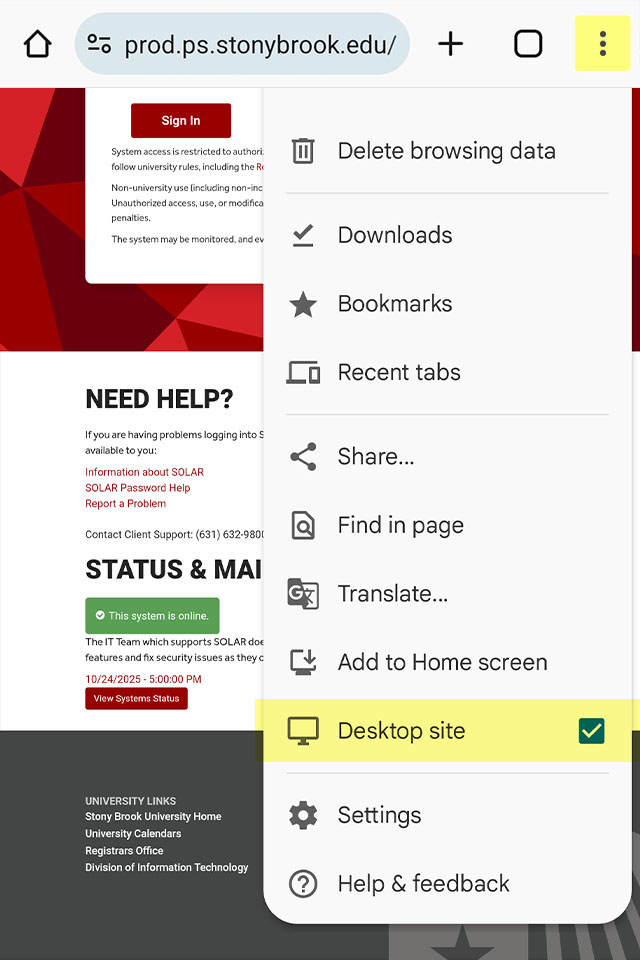
- Tap the menu icon on the top right of the Chrome address bar.
- Check the checkbox next to the "Desktop site" item from the pop-up menu.
- Chrome will redirect you to the SOLAR desktop website login page.
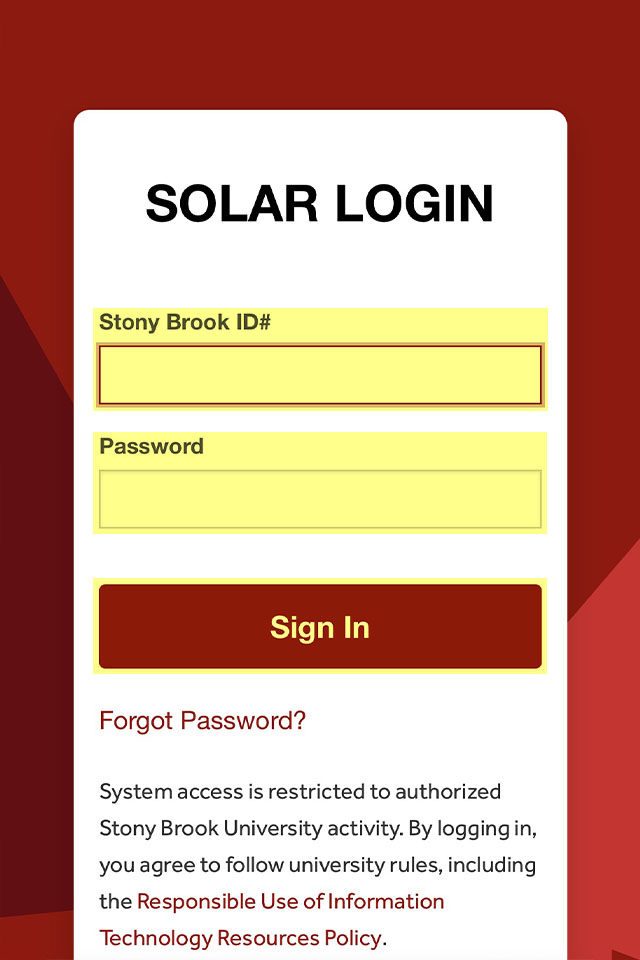
Login to SOLAR using your Stony Brook ID number and password.
The Office of Undergraduate Admissions cannot directly assist with technical issues relating to SOLAR. Should you encounter issues logging in, it is recommended to clear your web browser's cache/cookies or to try a different web browser. If technical issues persist, please contact our SOLAR Client Support through our Department of Information Technology (DoIT). You can submit this SOLAR Help Form or call at (631) 632-9800, Monday through Friday during business hours.
Select the "Pay Initial Deposits/Fee" link located under the "For New Students" tile.
You may need to zoom in to be able to view and tap this link as it can appear small on mobile devices.
- Check the checkboxes to select the Tuition Deposit and Orientation Fee payments. If you'll be residing on campus, select the Housing Deposit payment as well.
- Select the Confirm Selection button.
- Your screen will update with a message that your selections have been confirmed.
- Select the words “Make a Payment” to proceed with your payment selections.
- Select the Next button to confirm the payment amount.
- Select the payment method using the "Pay By" dropdown menu. You can pay Credit Card or Electronic Check.
- Select the Next button to confirm the selected payment method.
- Select "Continue To Make Payment" to confirm your selection.
Please note that if you select Cancel during the payment process and are redirected to a page with a warning message shown in the screenshot, you should select “No” to return to the Confirm Payment screen.
If “Yes” is selected, and you wish to continue with payment, do not select Pay Tuition and Fees at the bottom of this page but select the back arrow in the top left corner until you return to the For New Students page to start over.
- Enter the payment information for the payment method you selected. The top portion of the screenshot shows the credit card information entry screen. The bottom portion shows the electronic check information entry screen.
- Select continue to confirm the payment information entered and finalize the payment process. Your screen will update with a message that your payment has been confirmed.
- Once you have finalized the payment process you can close Chrome.
University CodesSAT: 2548ACT: 2952FAFSA: 002838

