How to Submit Course Materials
Step 1
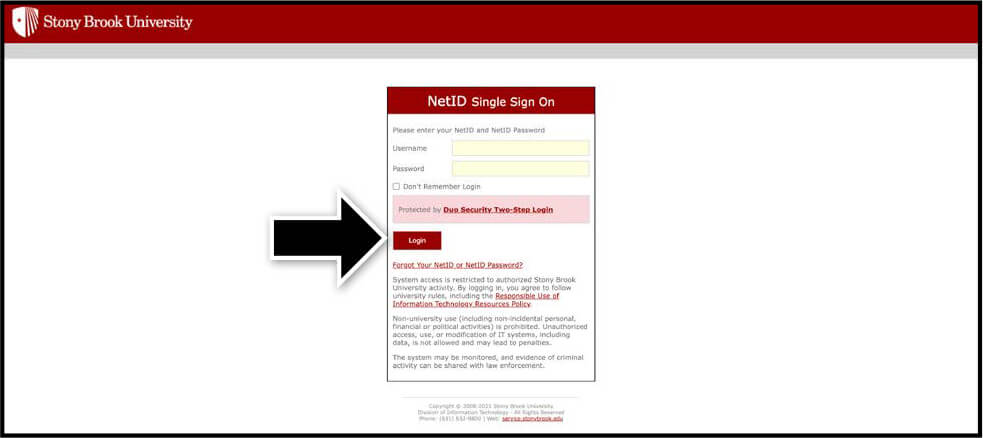
Sign in to FAST by entering your Stony Brook University credentials.
Step 2
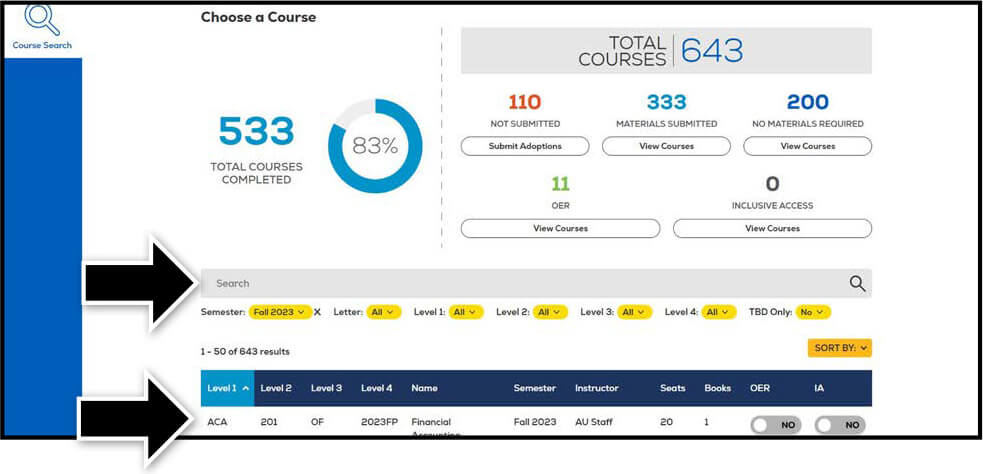
Upon signing in, your course list should automatically appear. Choose the course you wish to edit. You may also use the search bar to locate a specific course or change the semester by selecting the filters underneath it.
Step 3
To add an adoption, select the Add Adoptions button below Course Adoption Details. If there are no course materials required, select the box next to Textbooks are not required for this course and select Save.

Step 4
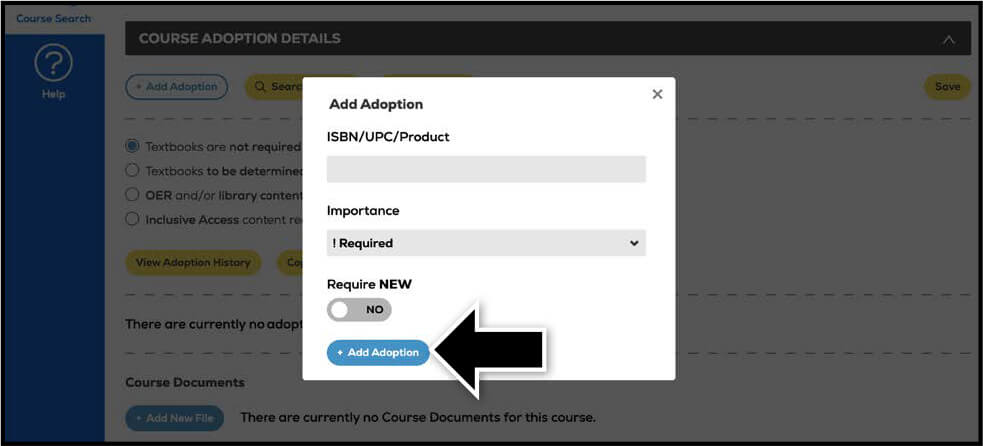
Enter the ISBN into the ISBN/UPC/Product field and choose the Importance level. If the item you are adding should only be purchased in new condition, toggle the Require New button to YES and select Add Adoption.
Step 5
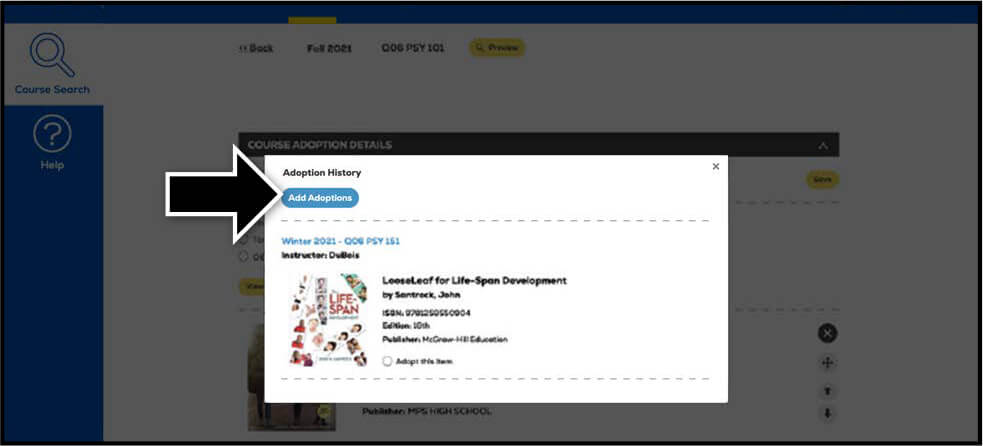
You may view past adoptions by selecting the View Adoption History button. To add a previously used adoption, select the button next to Adopt this item and select Add Adoptions at the top. Once a text is added, you may add a Book Comment, re-sort, and delete items as needed. You may also utilize the Copy All feature to add the adoption(s) across multiple courses that require the same material(s).
Step 6
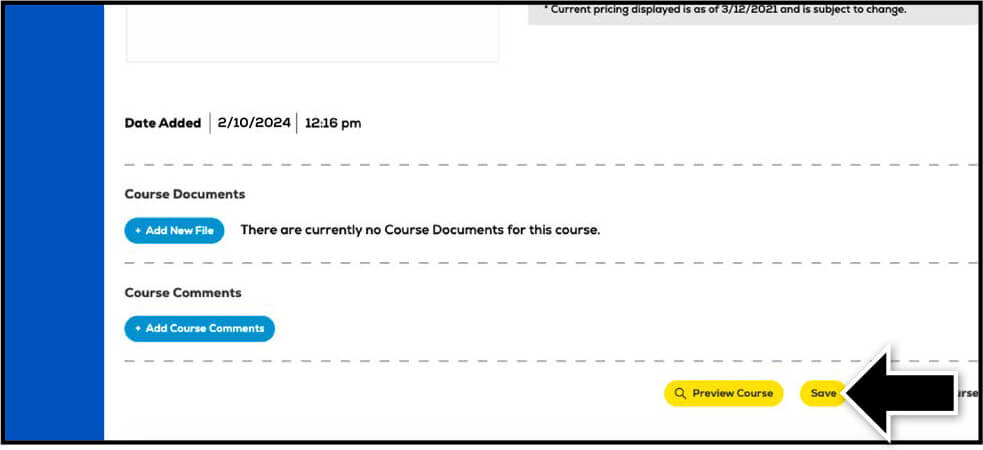
Any time a change is made to a course, select Save. To view how the course will appear to students on the Online Bookstore, select the Preview Course button.